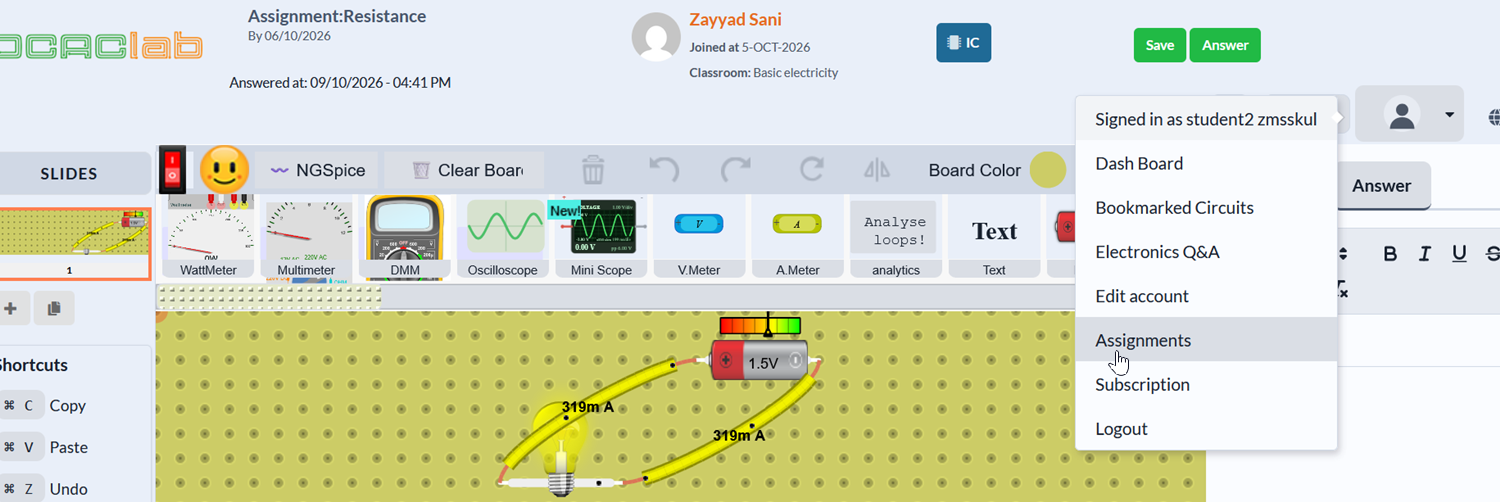
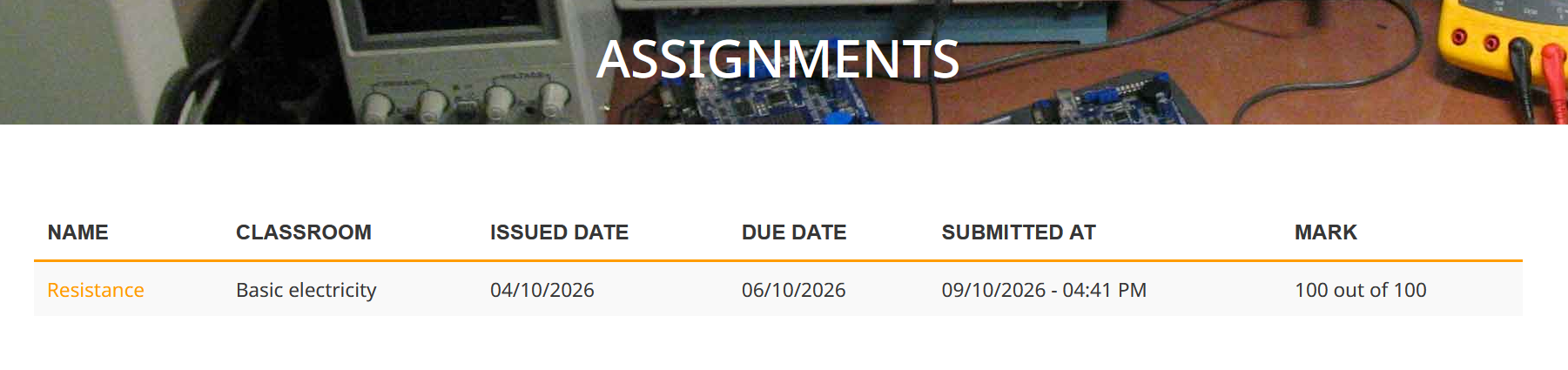
Attempting Assignments
After joining a classroom, you can attempt the assignments created by your teacher. The following steps will guide you through this process:
- Open your DCACLab dashboard.
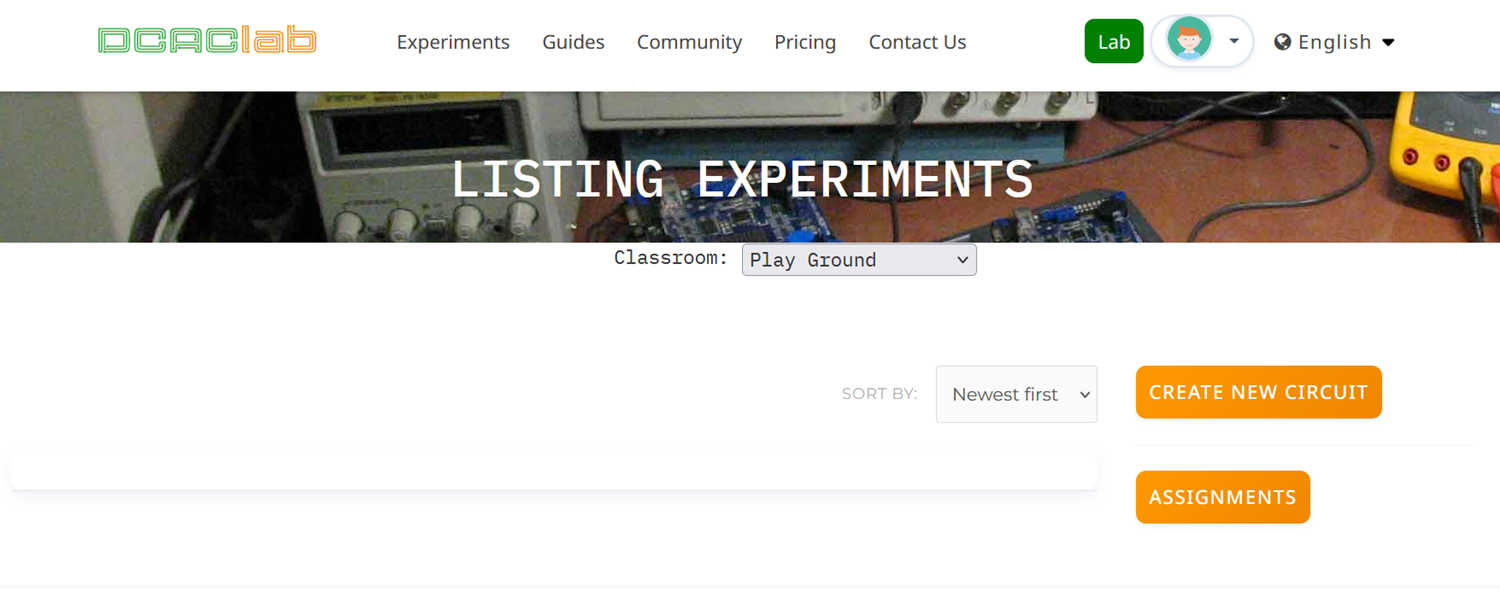
- Use the dropdown to select the classroom you want to work with.
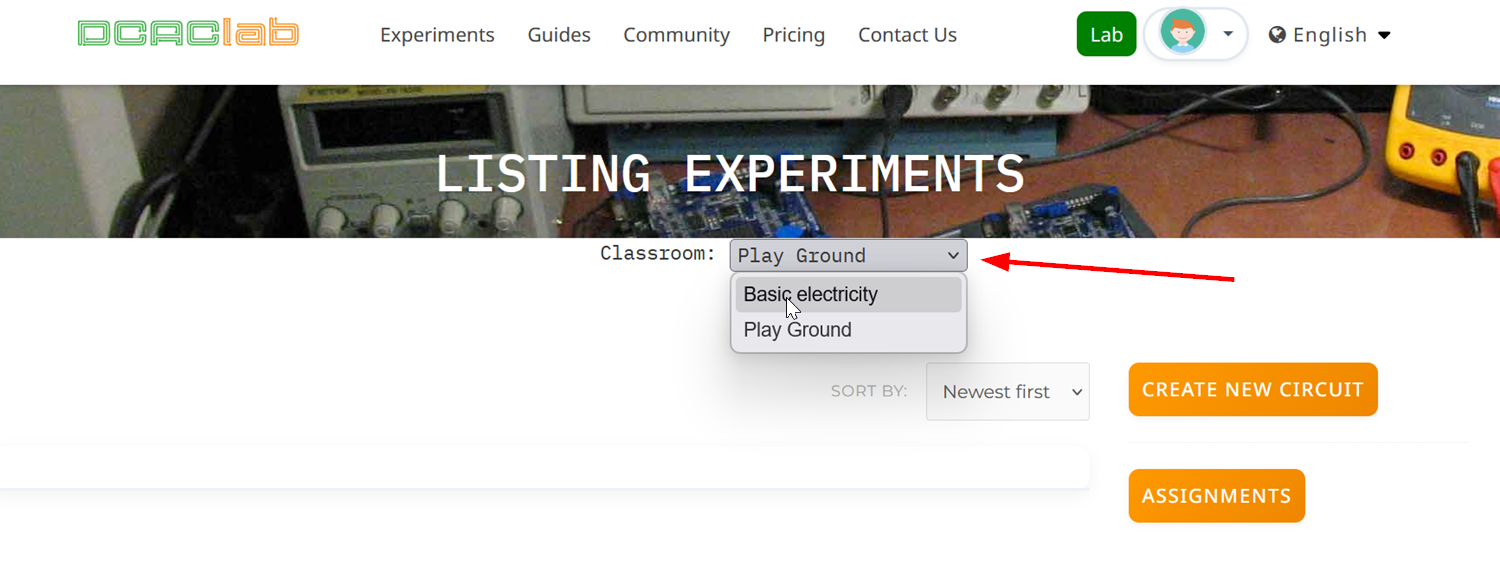
- Click the Assignments button and you'll be taken to the assignments page for that classroom. You should see a list of assignments, their issued and due dates and their scores (if any). If you don't see any assignments, it means your teacher hasn't created any yet.
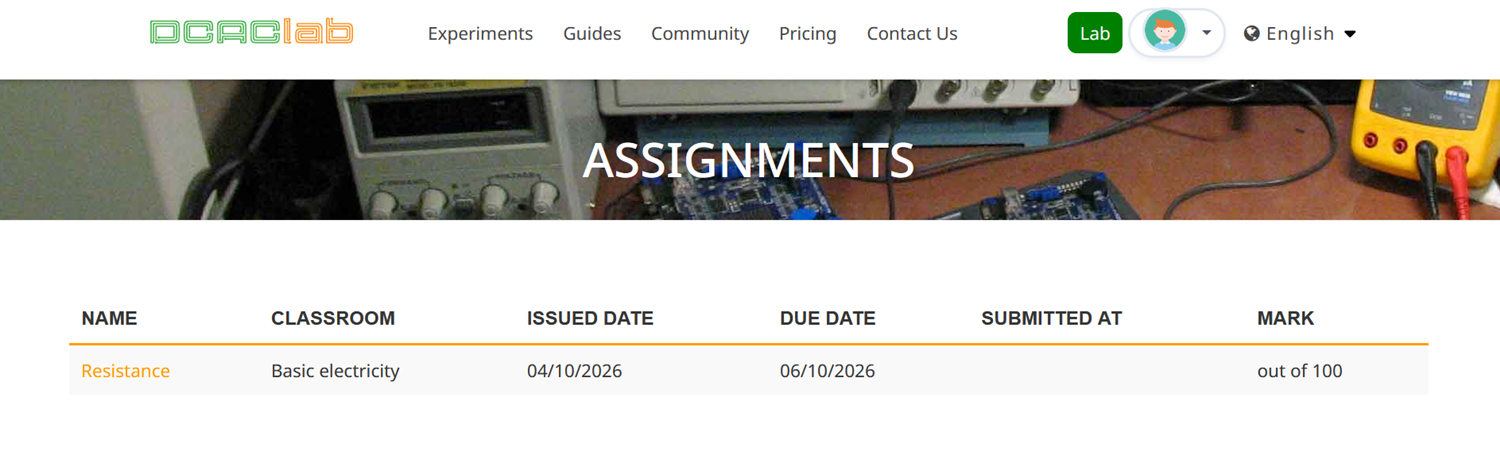
- Click on the name of the assignment you want to attempt. This will open a new tab containing the assignment's circuit, question, teacher name, and issued date.
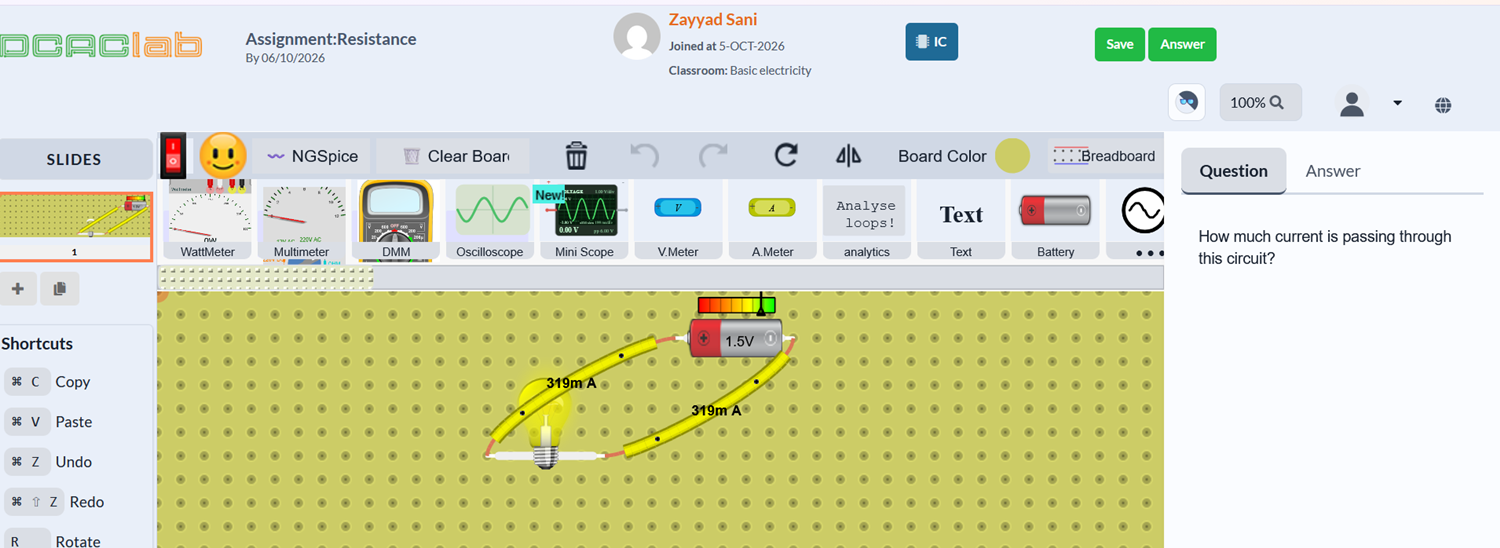
If the assignment requires modifying or building a circuit, you can use the circuit board, components, and simulation tools.
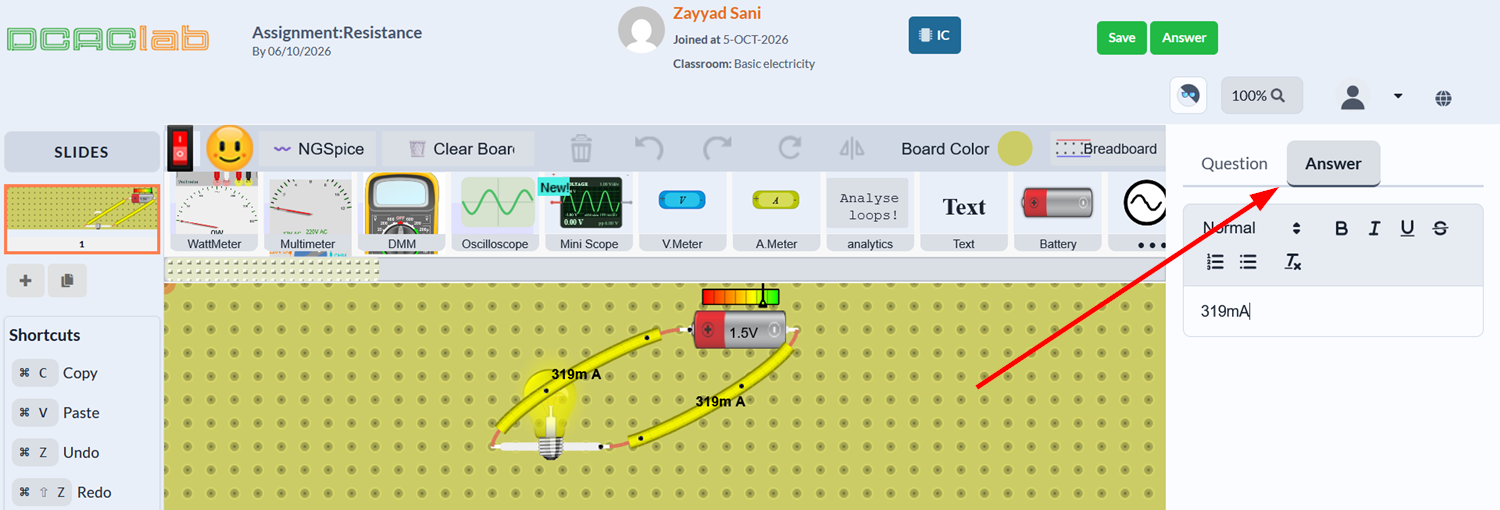
- After you've read the question, solved the problem, and built any circuits, click the Answer tab on the right half of the screen and write your answer.
tip
If you're not ready to submit your assignment yet, you can click the Save button to save your answer/circuit and work on it later.
- If you're sure of your answer, click the Answer button to submit your assignment. A dialog will appear confirming your submission. Click Yes to proceed.
If your answer was saved successfully, you'll see confirmation messages.
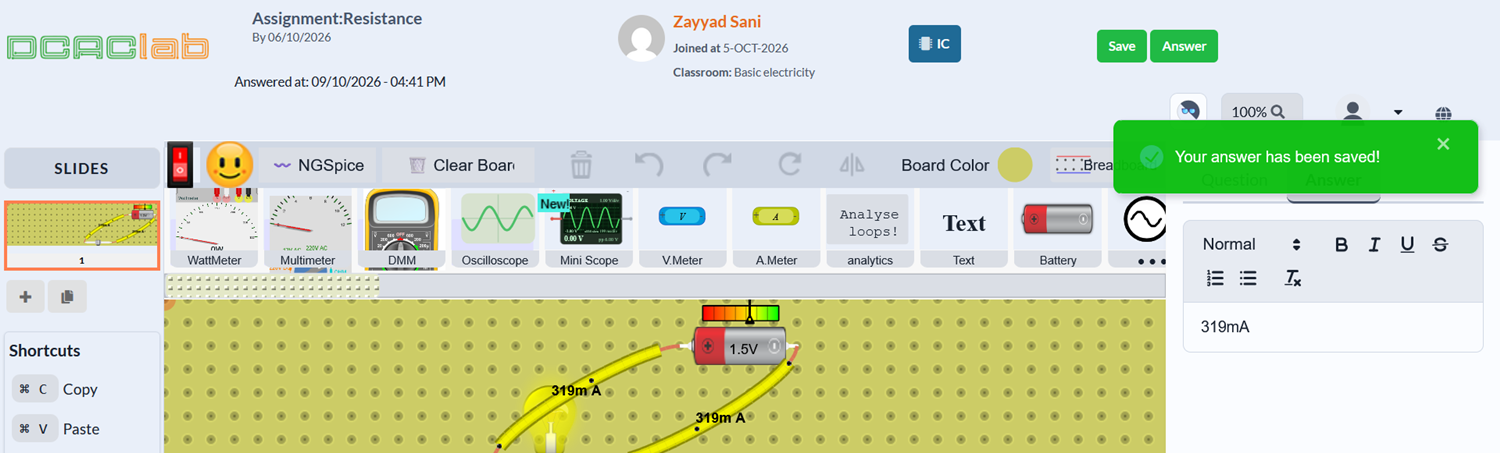
You can click the profile icon to return to go back to the assignments list. If your teacher has graded your assignment, you'll see your score under the Mark column