Assignment Management
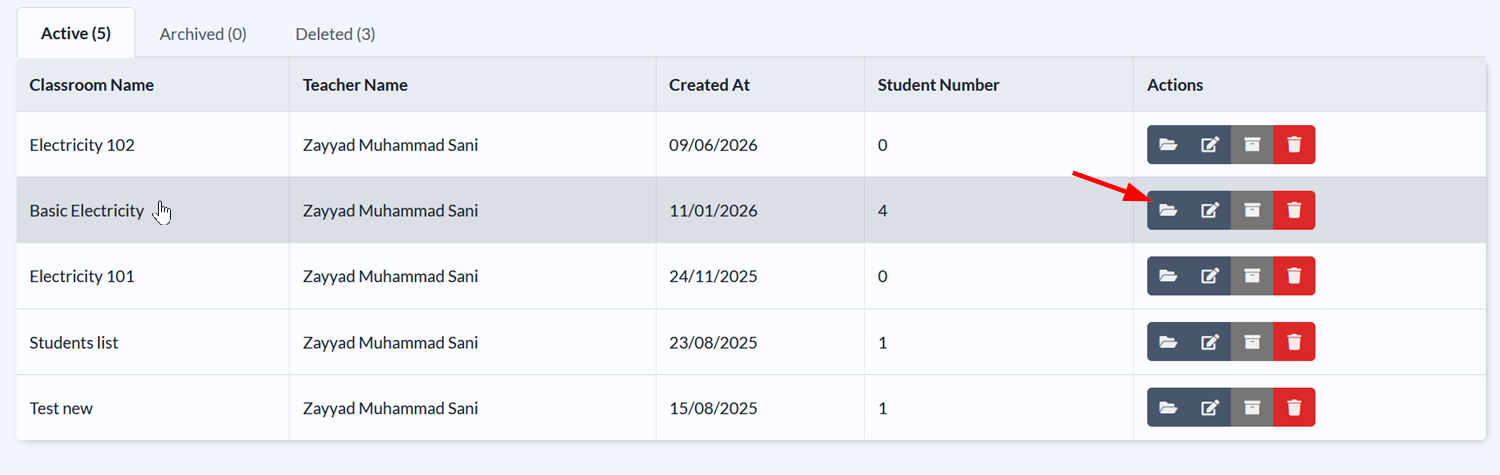
To work with assignments, first open the classroom you want to create assignments in.
Click on the classroom's name or the folder icon on the same row.
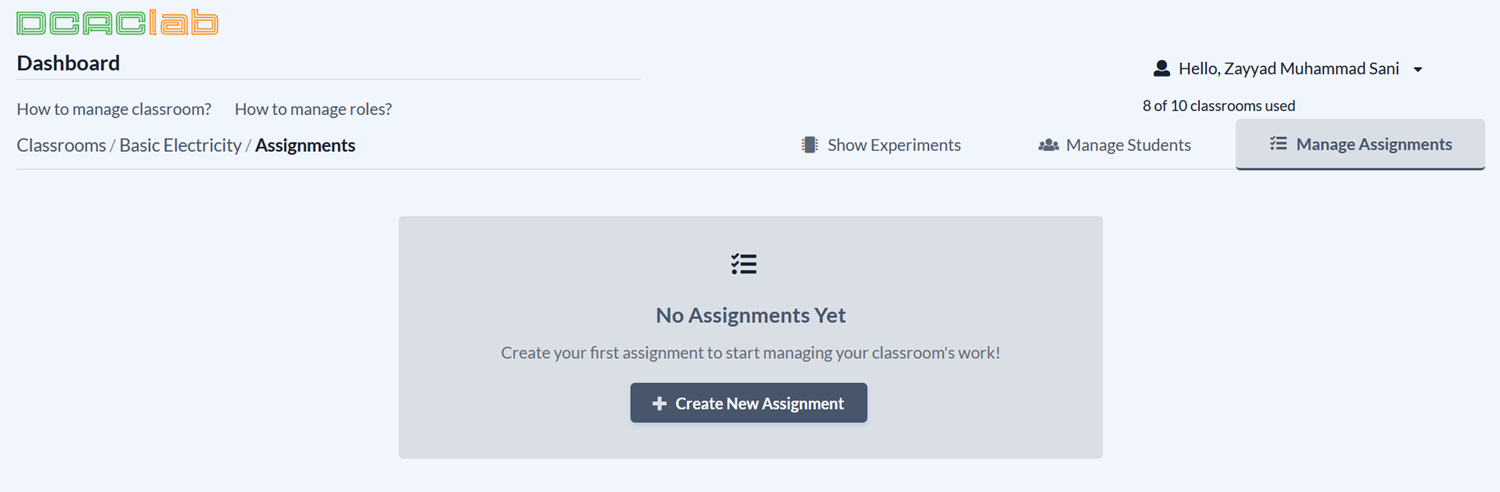
Once the classroom opens, the Manage Assignments tab should be selected by default.
Create an Assignment
1. Click Create New Assignment.
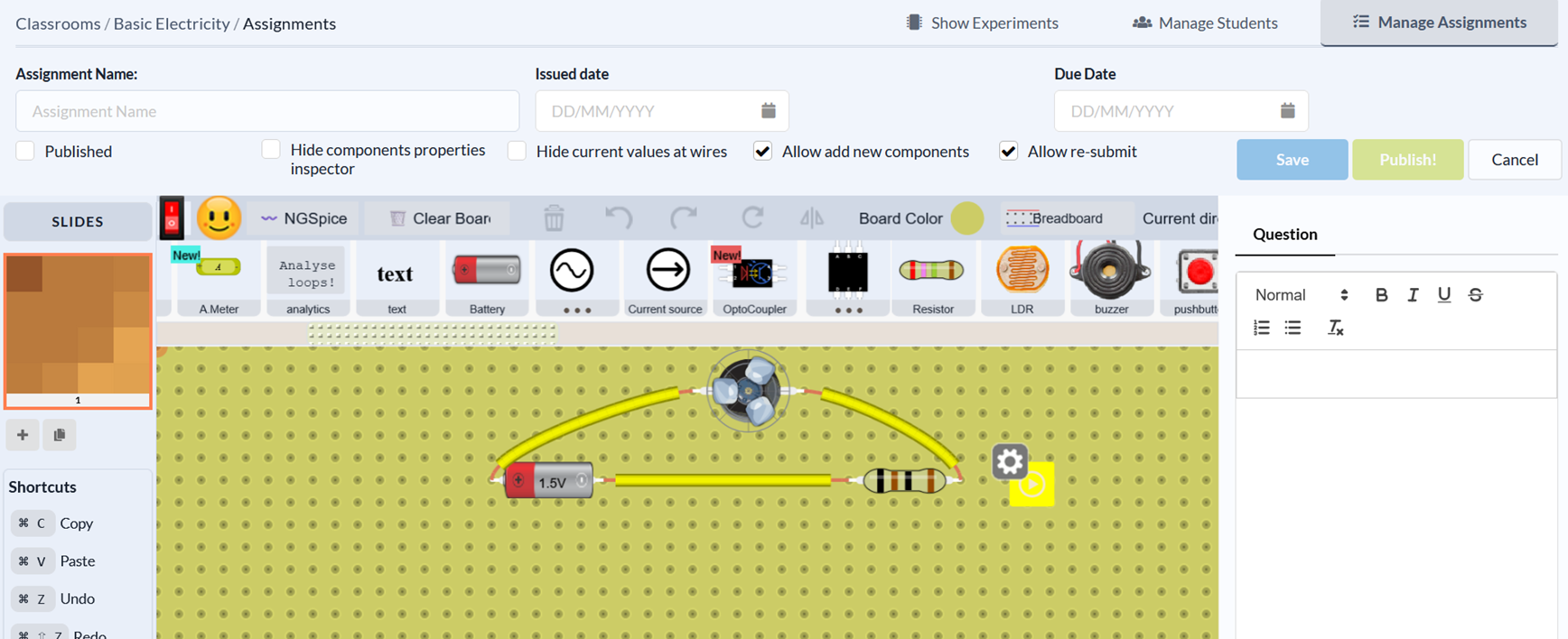
2. (Optional) Drag circuit components to the canvas to build your electrical circuit.
You can skip this step if you want students to build their own circuits.
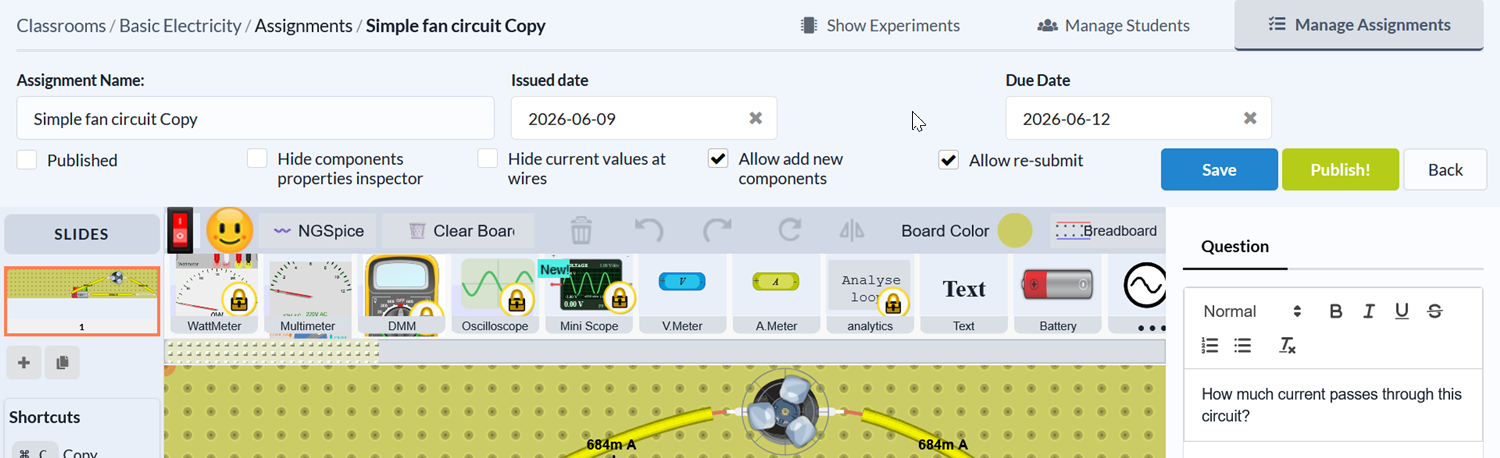
3. Give the assignment a descriptive name.
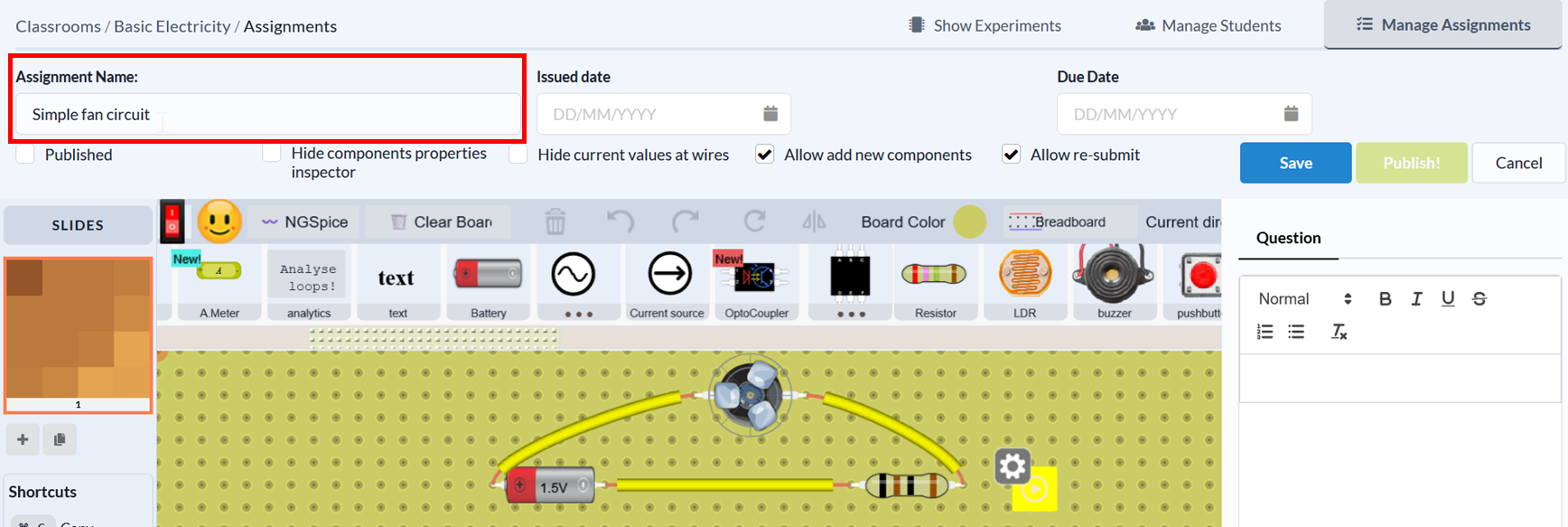
4. Click the Issued Date field and select the assignment's issued date from the datepicker.
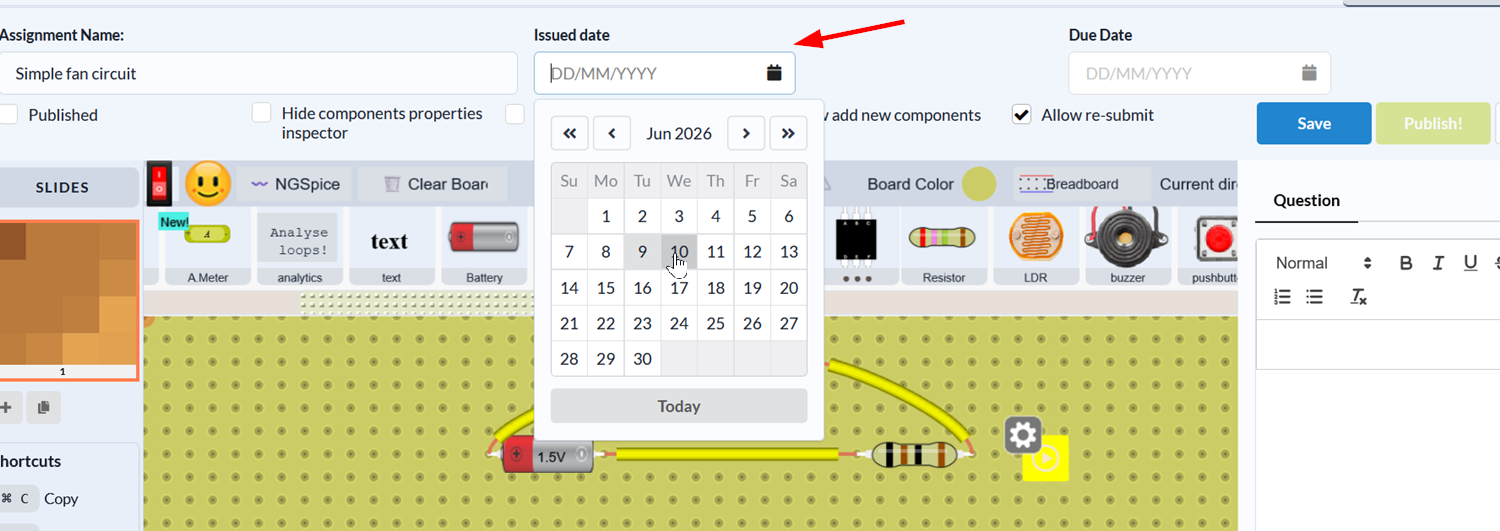
5. Click the Due date field and set the assignment deadline in the datepicker.
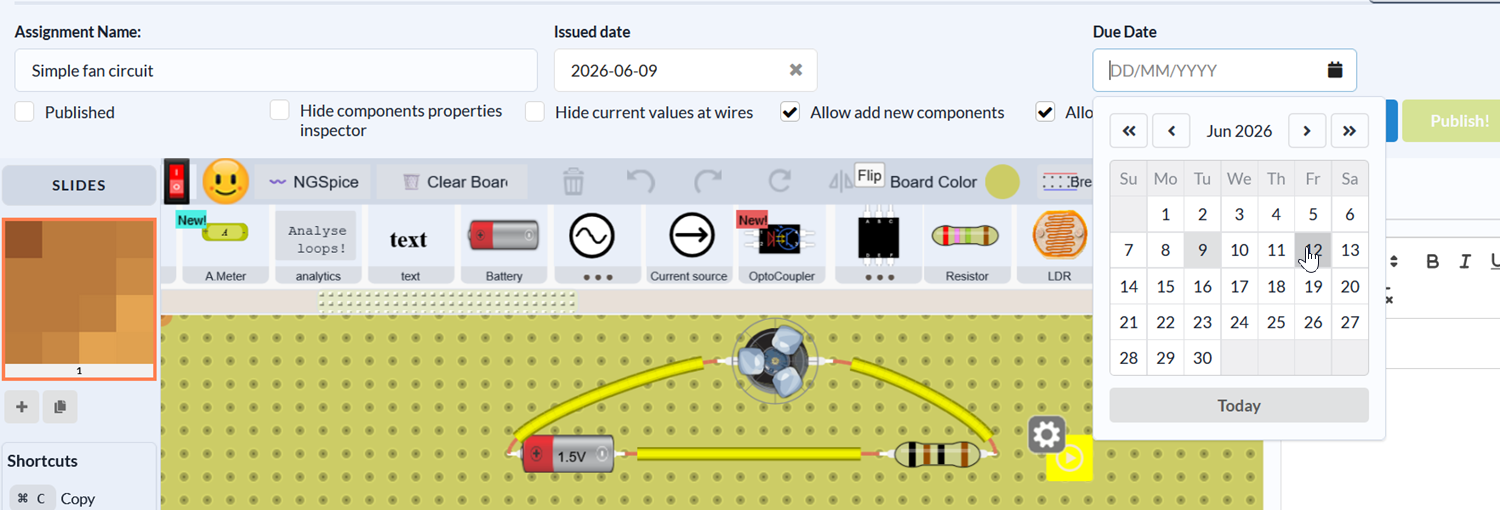
6. (Optional) Configure the assignment settings according to your preferences:
-
Check the Hide components properties inspector option to simplify the interface for students.
-
Check the Hide current values at wires checkbox to conceal wire measurement data.
-
Check the Allow add new components option if you want students to add components when answering the assignment.
-
Check the Allow re-submit option if you want to give students the ability to re-submit the assignment.

7. Enter your assignment question in the Question text area in the right corner of the screen.
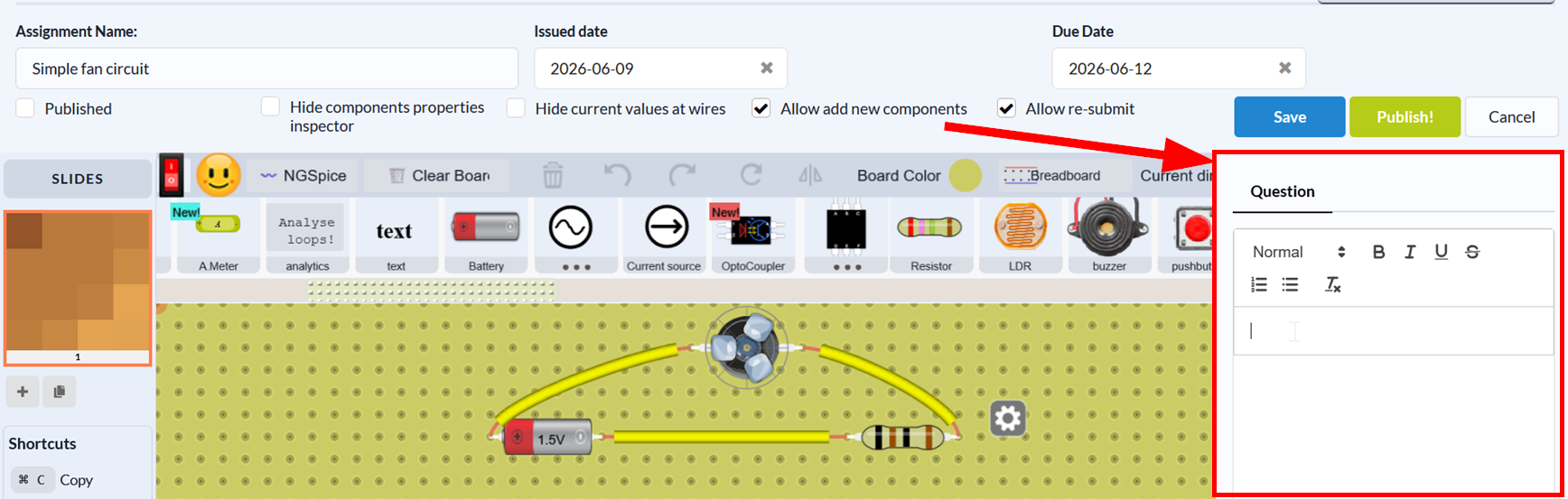
8. (Optional) Click Save to keep all the changes you've made. This is helpful if you're not ready to publish the assignment to students.
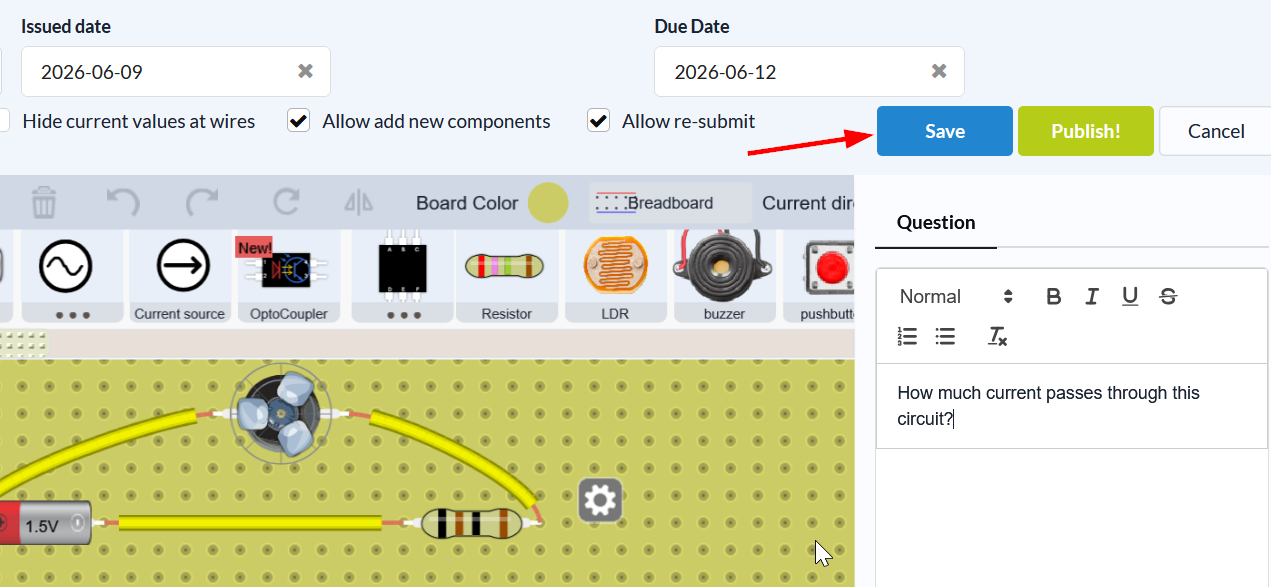
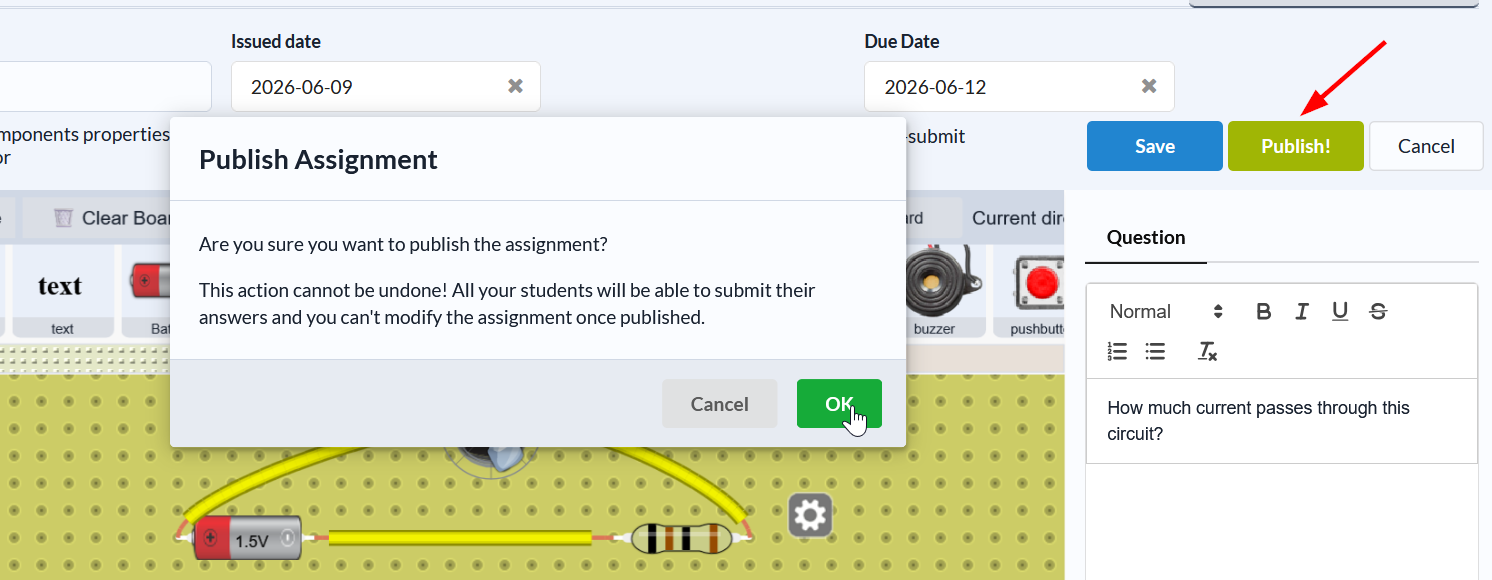
9. Click Publish!, then click OK button to make the assignment available to students.
Grade an Assignment
Once students start submitting their assignment, you can grade them by following these steps:
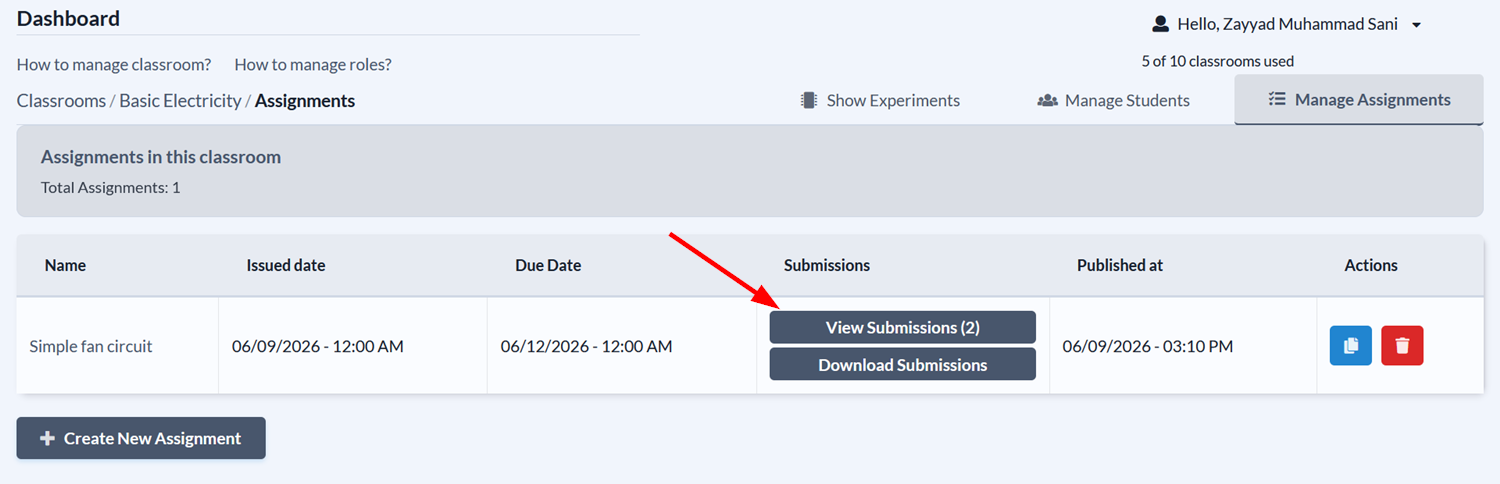
- Under the Manage Assignments tab, click the View Submissions button on the row of the assignment you want to grade. TIP: You'll see the number of submissions in the button's label.
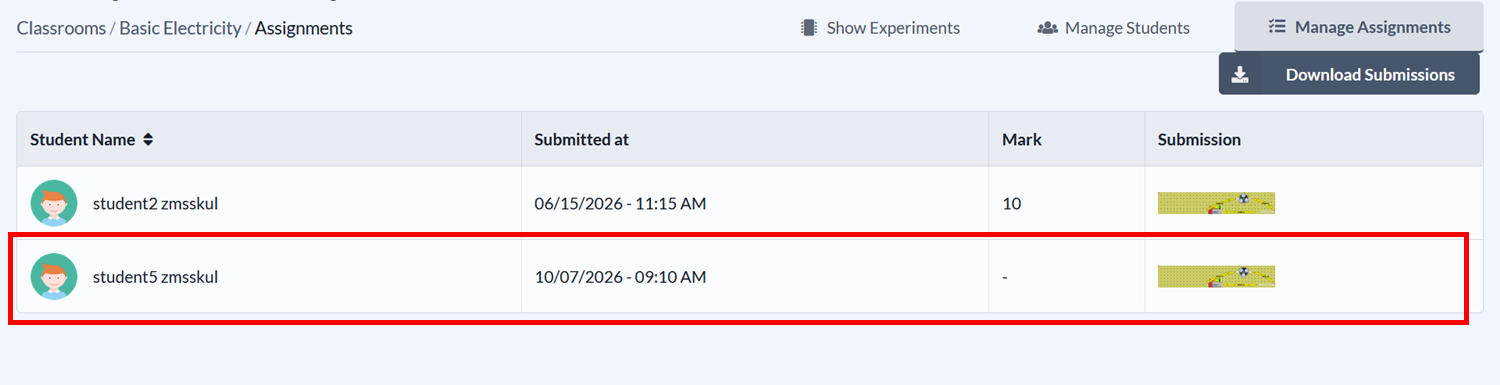
- Click anywhere on the student's row to open their submission.
- You can view the student's answer in the Notes tab. If they built any circuits, you'll also see them on the board.
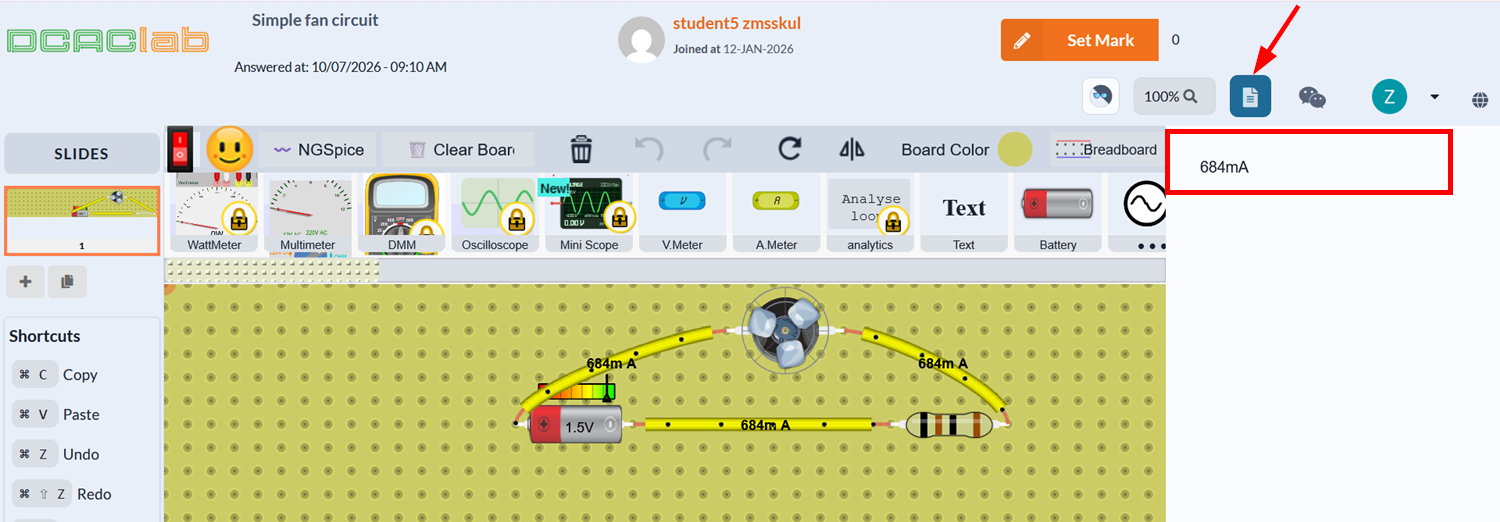
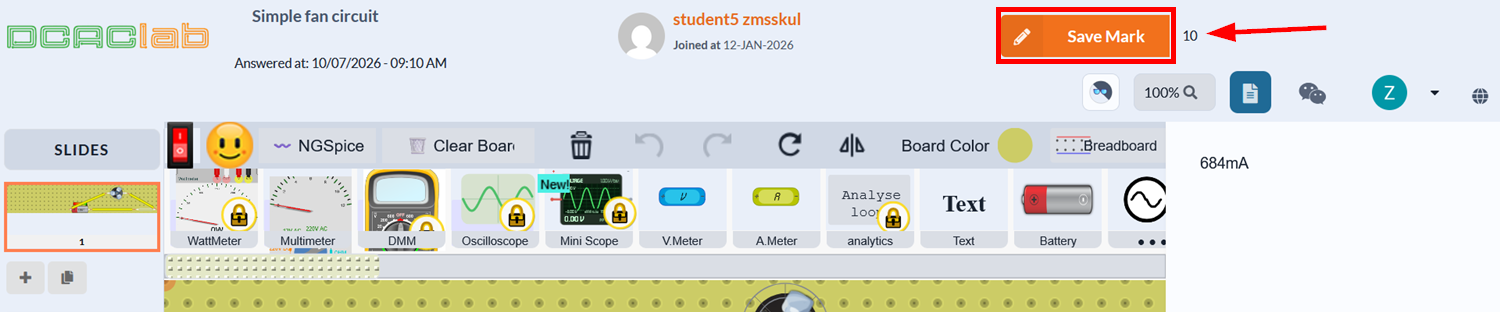
- Click the input field next to the Set Mark button, enter the student's score, then click Save Mark. You will get a confirmation message if the mark is saved successfully.
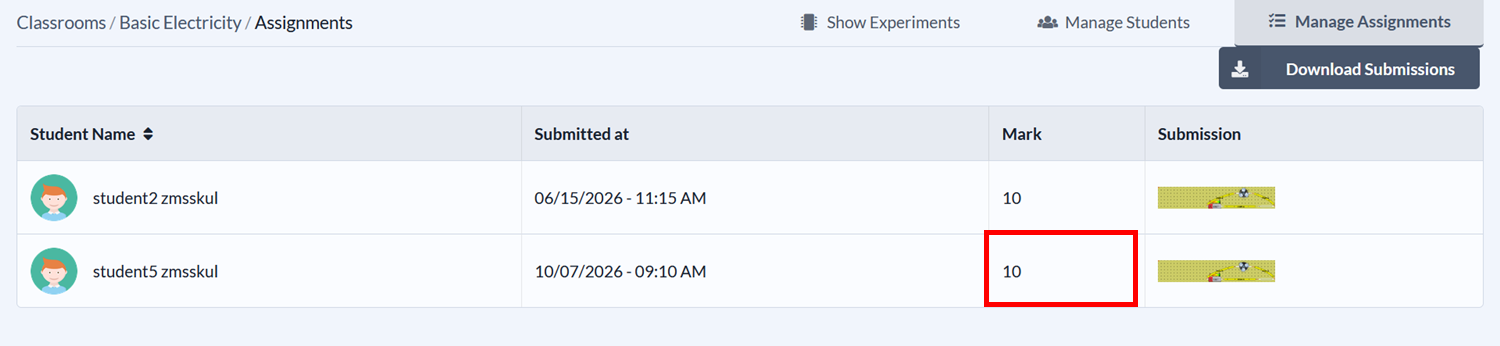
The mark should be reflected in the submissions list.
Download Assignment Submissions
Once students submit their assignments, you can download all submissions in an Excel file.
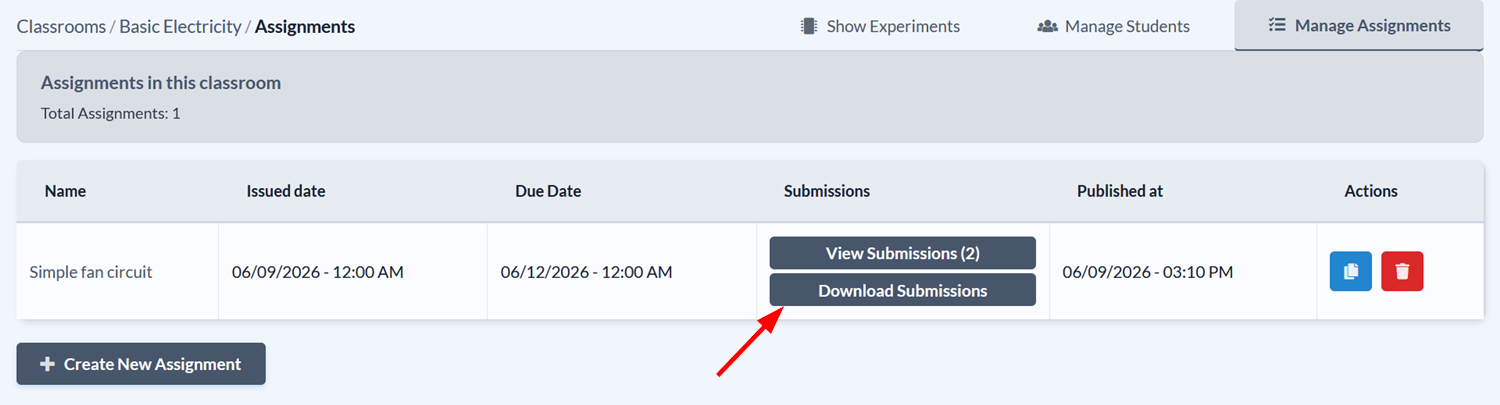
Click the Download Submissions button on the assignment's row. The Excel file will be downloaded to your computer.
Once you open the Excel file, you'll see a table with the following data for each submission:
- Submission ID
- Student name
- Score
- Submission date
- Submission link (URL)

Duplicate an Assignment
Duplicating an assignment is useful if you want to create a similar assignment without having to set up the circuit and settings from scratch. Note that the duplicated assignment will have no submissions, so you can use it to create a new assignment for students.
To duplicate an assignment, click the button with the copy icon under the assignment's Actions column.

Once the assignment is duplicated, you can edit its name, question, issued and due dates.
Delete an Assignment
Deleting an assignment is permanent action and cannot be reversed. Every information related to the assignment will be lost, including the circuit, settings, and submissions.
- Click the button with the trash icon under the assignment's Actions column.
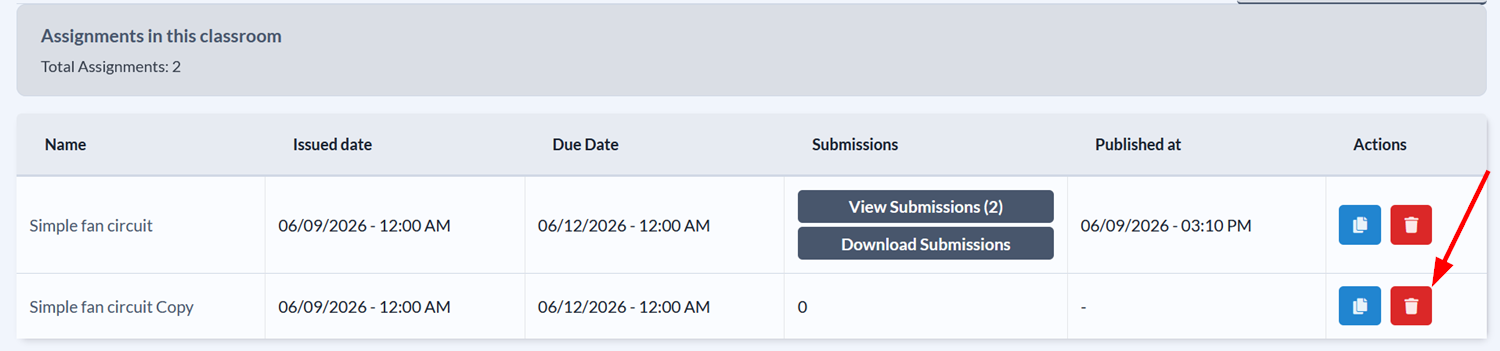
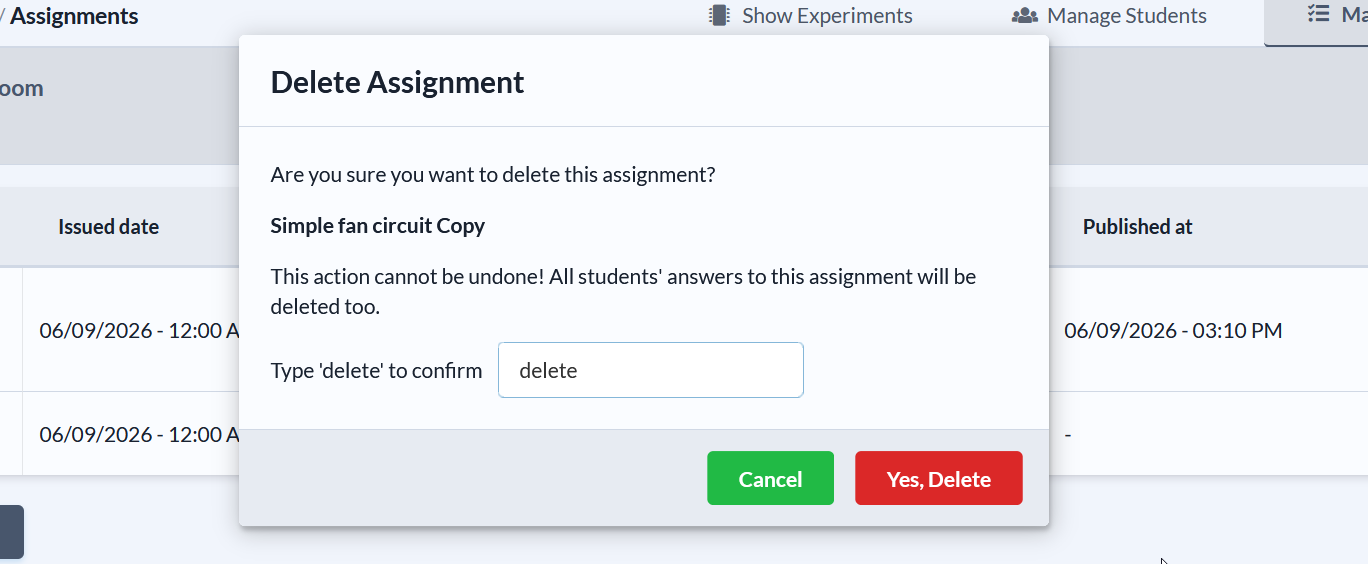
- Type delete in the confirmation dialog, then click Yes, Delete to confirm the action.