Classroom Management
Access Classrooms
To enter the classrooms section:
- Login to DCACLab.
- Click Manage Classrooms on your dashboard.
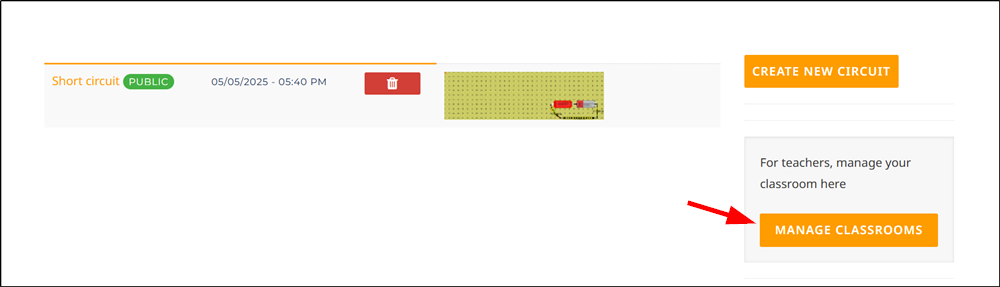
You should now be in the classrooms section.
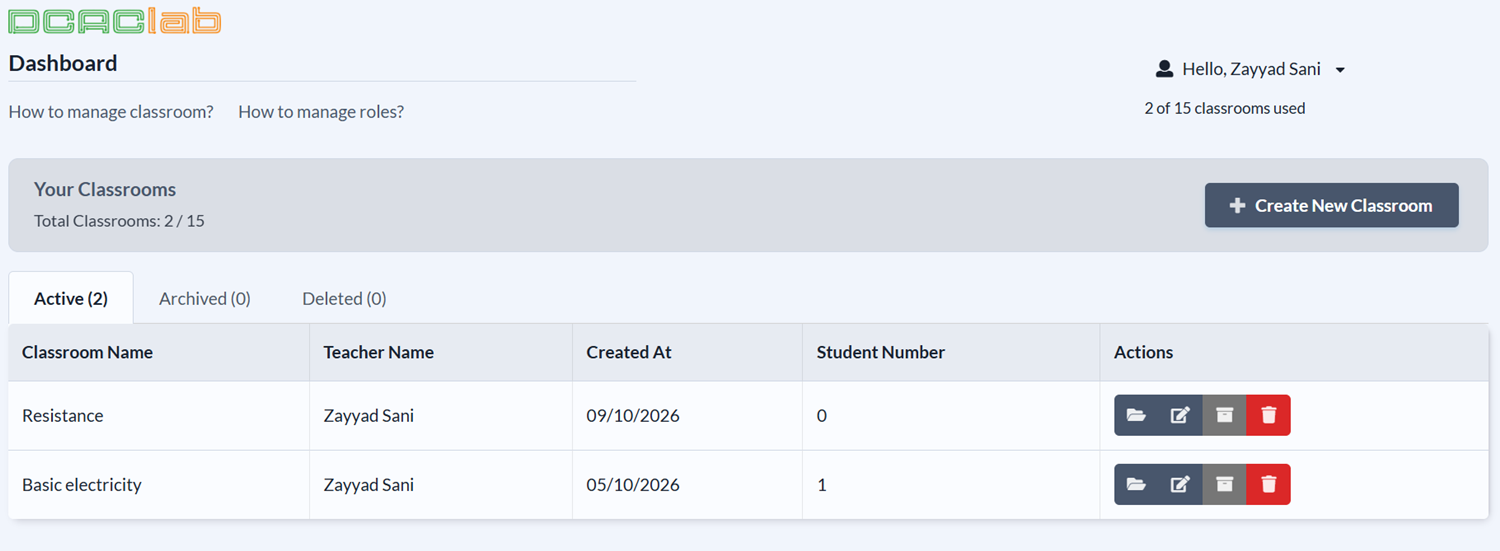
Near the top-left corner, you'll see the number of classrooms you can create and the number of classrooms you have created.
Create a Classroom
- Click Create New Classroom.
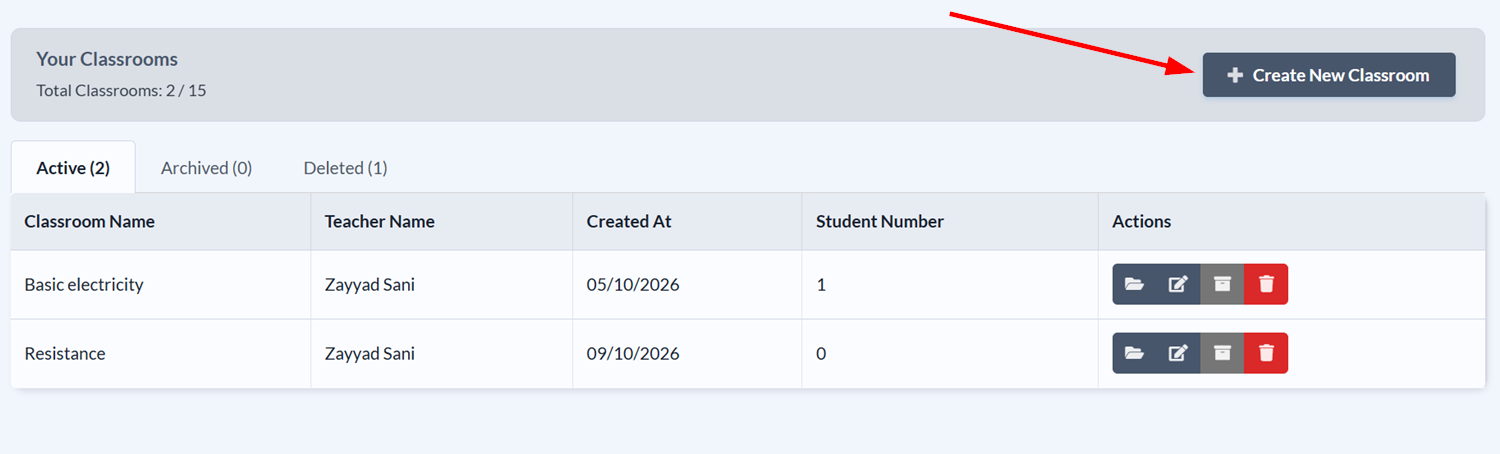
- Name the classroom, then click Save.

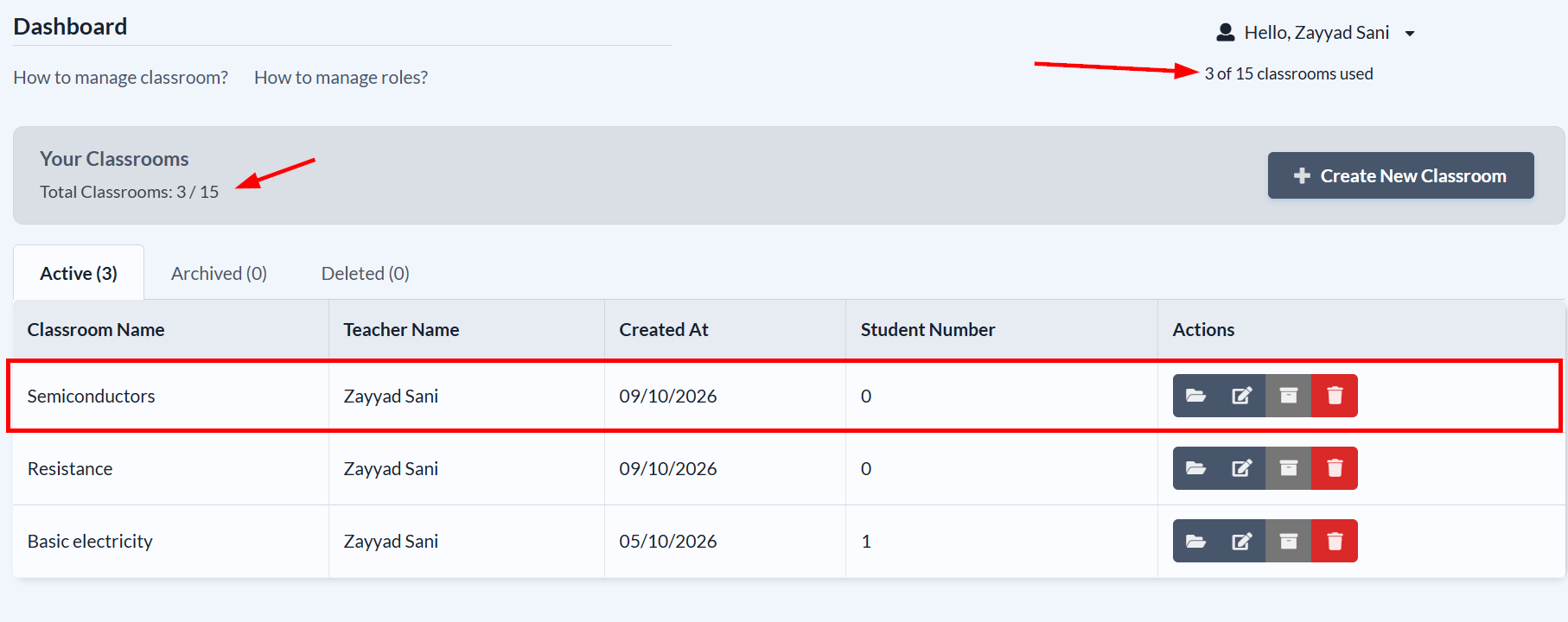
The new classroom should appear on your list of classrooms and the number of classrooms used will be updated.
Rename a Classroom
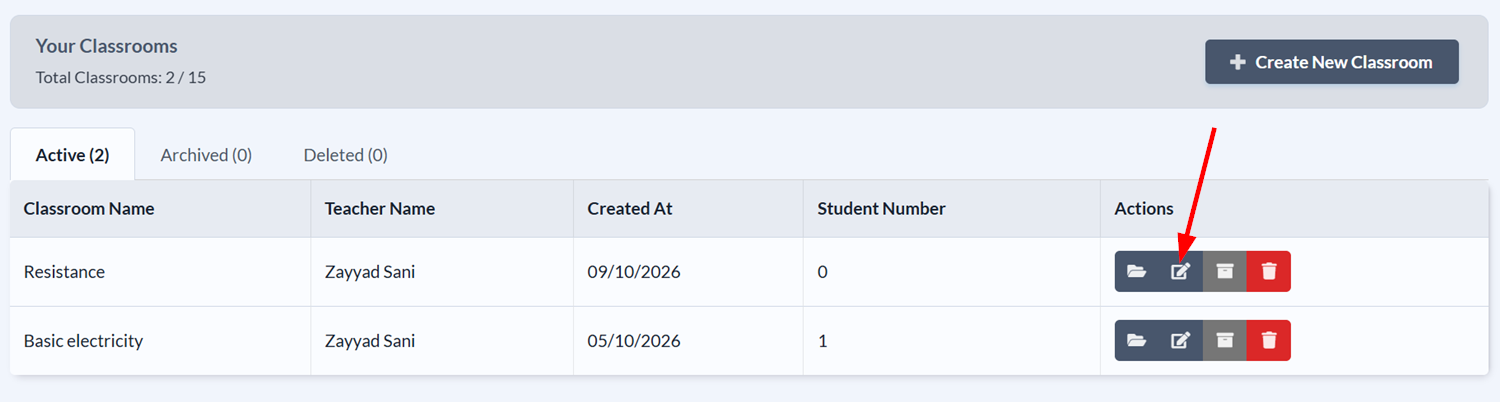
- Click the Edit icon on the row of the classroom you want to rename.
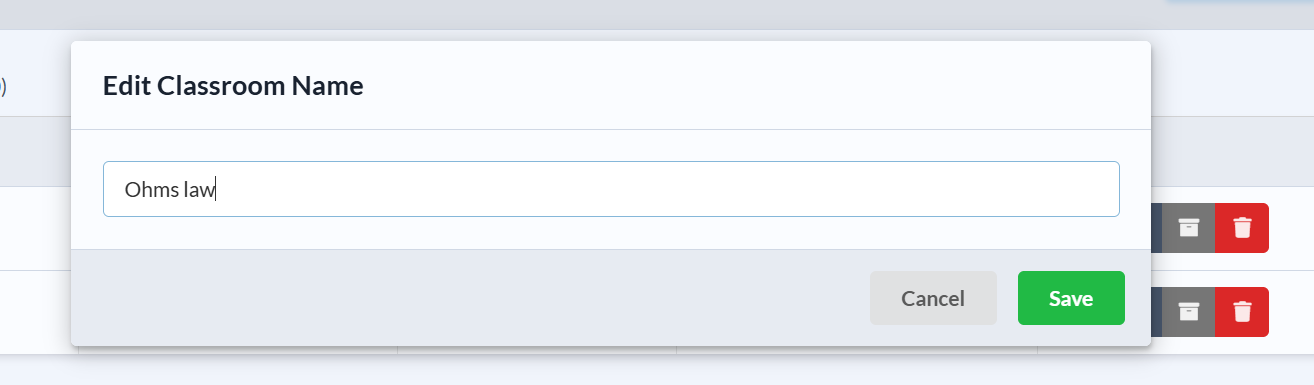
- Enter a new name for the classroom, then click Save.
Archive a Classroom
You can archive a classroom to remove it from your list of classrooms without deleting it. This is useful if you want to keep the classroom for future reference or if you want to free up space to create new classrooms.
Follow these steps to archive a classroom:
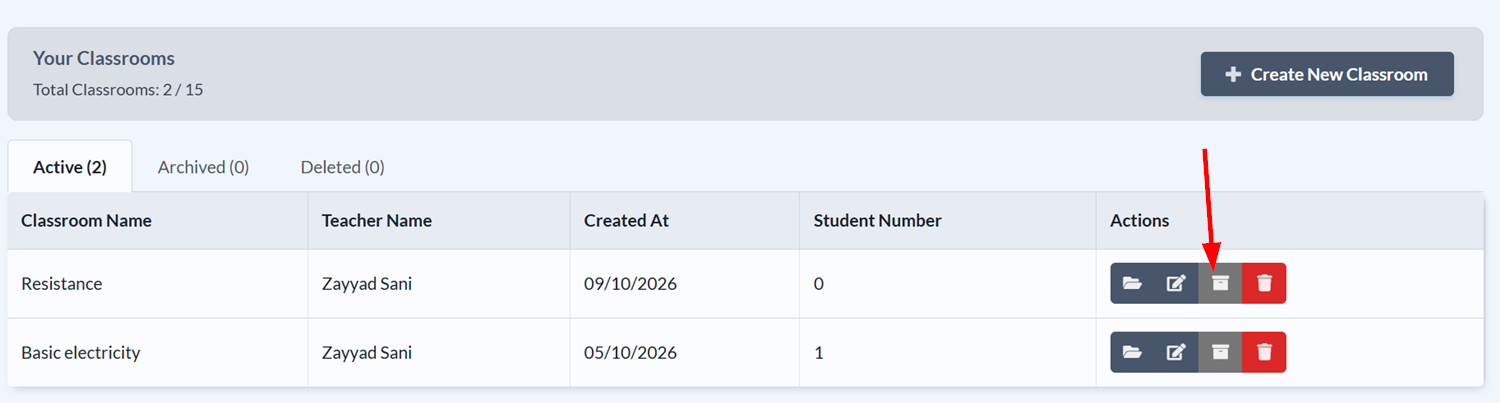
- Click the box icon on the row of the classroom you want to archive.
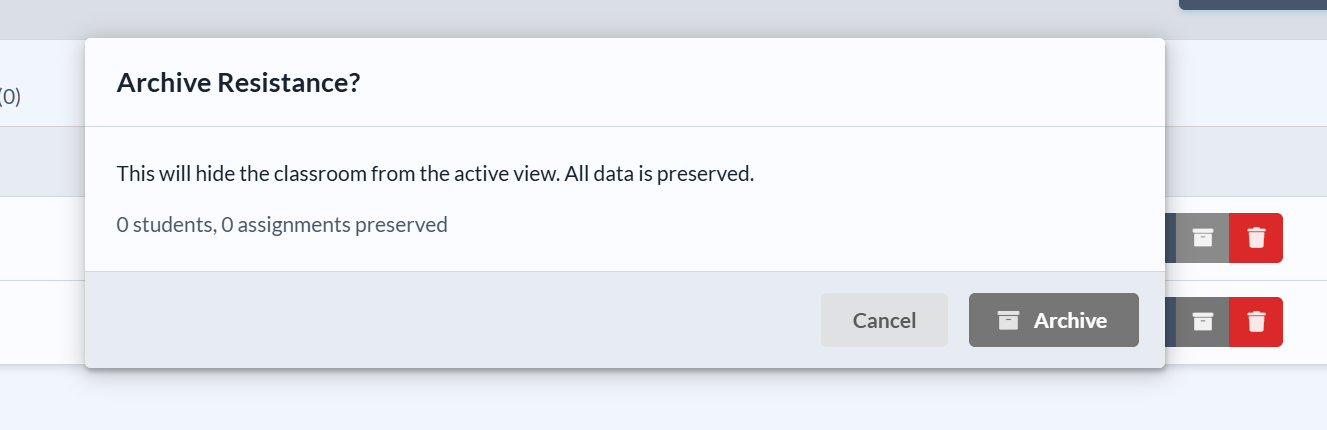
- Click Archive in the confirmation dialog that appears.
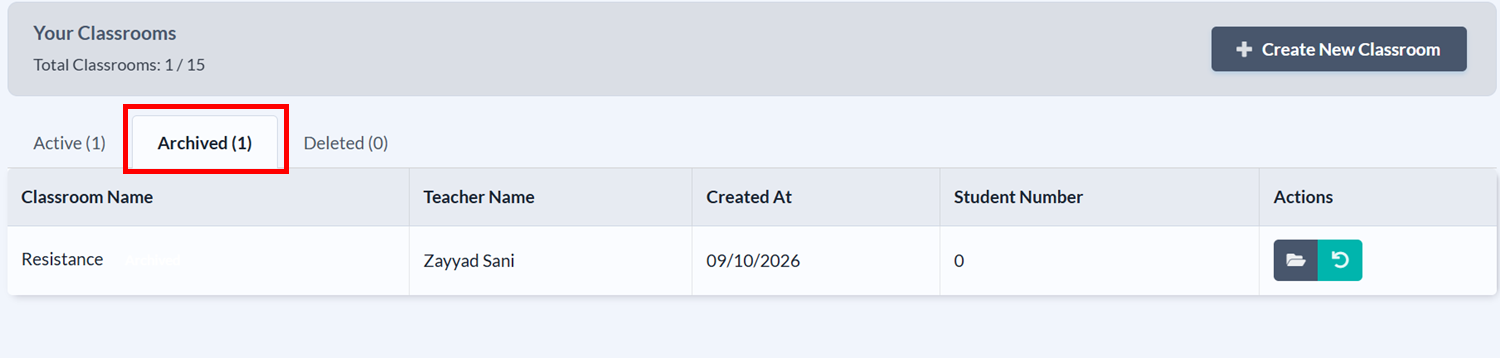
- Click the Archived tab to view your archived classrooms.
Restore an Archived Classroom
To restore an archived classroom, click the refresh icon on the row of the classroom you want to restore. The classroom will be moved back to your list of active classrooms.

Delete a Classroom
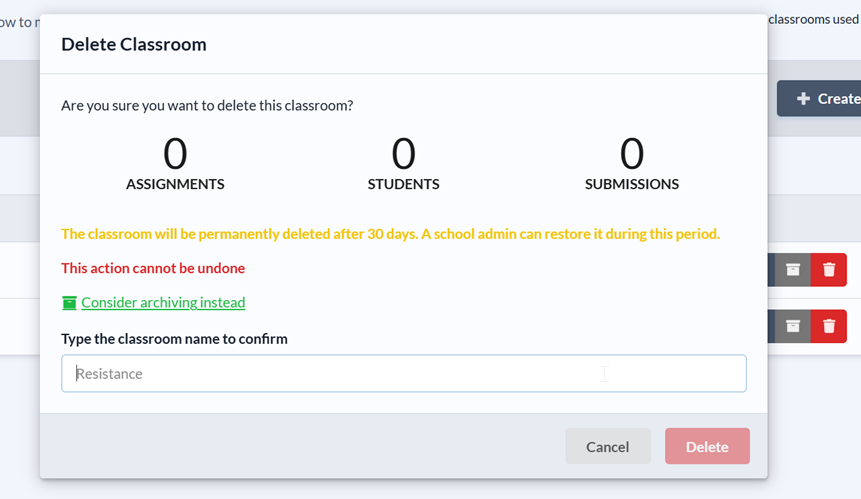
Once a classroom is deleted, a teacher can restore it within 30 days. Once that period has passed, all information related to the classroom will be lost, including the assignments, experiments, and students. Consider archiving a classroom instead if you want to keep it for future reference.
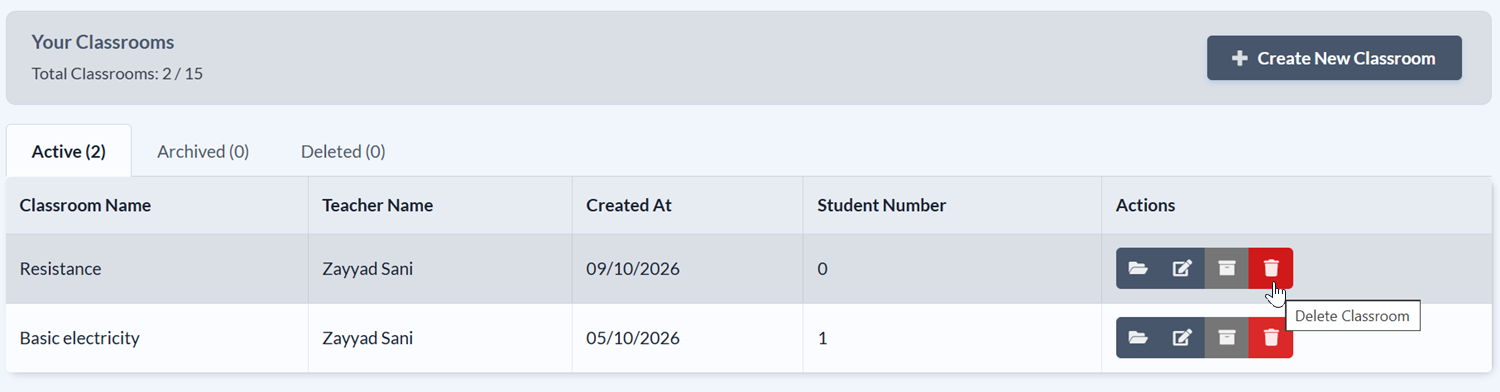
- Click the trash icon on the row of the classroom you want to delete.
- Type the classroom name in the dialog input, then click Delete.
Restore a Deleted Classroom
You can restore a deleted classroom within 30 days of deletion. To do this, click the Deleted tab, then click the refresh icon on the row of the classroom you want to restore.
