Roles
DCACLab Roles and their Permissions
Check the comparison table below for the functions and permissions of each role.
DCACLab Classrooms offers different roles with specific permissions for managing classrooms, assignments, and students. These roles are:
- School Admin: The School admin role is assigned to the individual who purchases a Classroom license for his school. This role allows a user to assign the Classroom admin and Teacher roles to other users and also perform all actions related to classrooms management.
- Classroom Admin: This role is one step below the School admin. A user with this role can do everything a School admin does except managing subscriptions and adding Classroom admins.
- Teacher: The Teacher role gives a user the minimum necessary permissions to run a classroom in DCACLab. A user with this role can create and manage classrooms, assignments, and students, but doesn't have the permission to add Classroom admins.
Summary of Roles in DCACLab Classrooms
| - | School Admin | Classroom Admin | Teacher |
|---|---|---|---|
| Create and Manage Classrooms, Assignments, and Experiments | ✅ | ✅ | ✅ |
| Add Students to Classrooms | ✅ | ✅ | ✅ |
| Assign Classroom Admins | ✅ | ❌ | ❌ |
| Assign Teachers to Classrooms | ✅ | ✅ | ❌ |
| Manage Subscriptions | ✅ | ❌ | ❌ |
Assigning and Removing Roles
To access role management features, use the following steps:
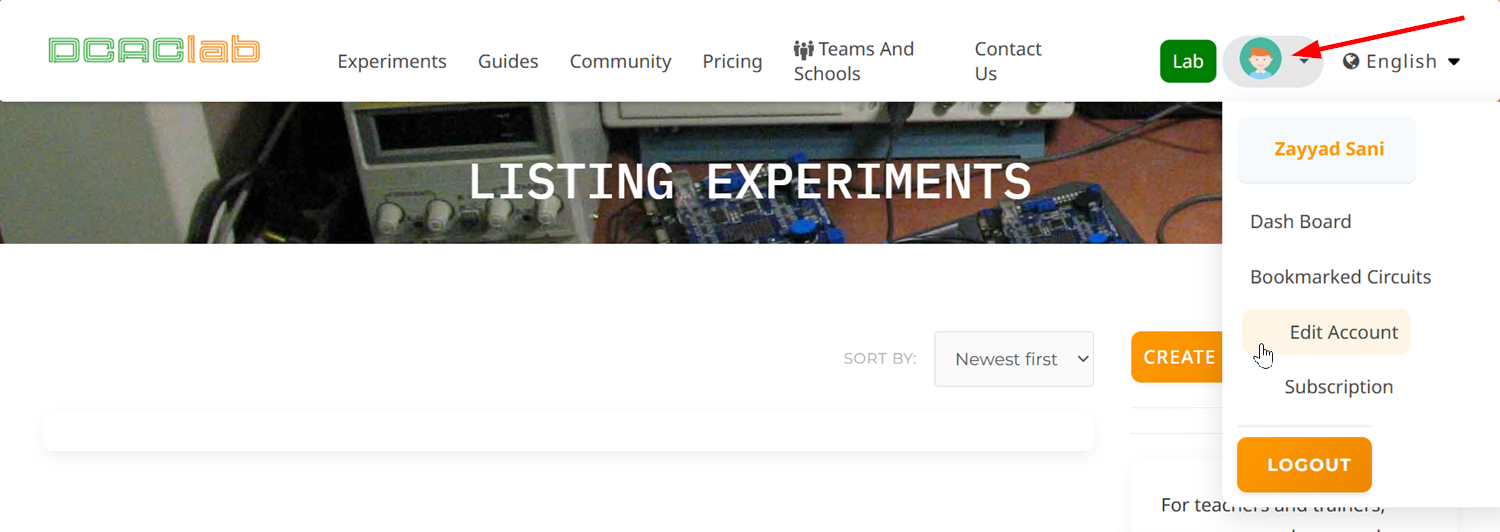
- Click your avatar icon on your dashboard to open the dropdown, then click Edit Account.
- Once the page opens, scroll down until you see the CLASSROOM ADMINS EMAILS (visible to School Admins only) and TEACHERS EMAILS fields.
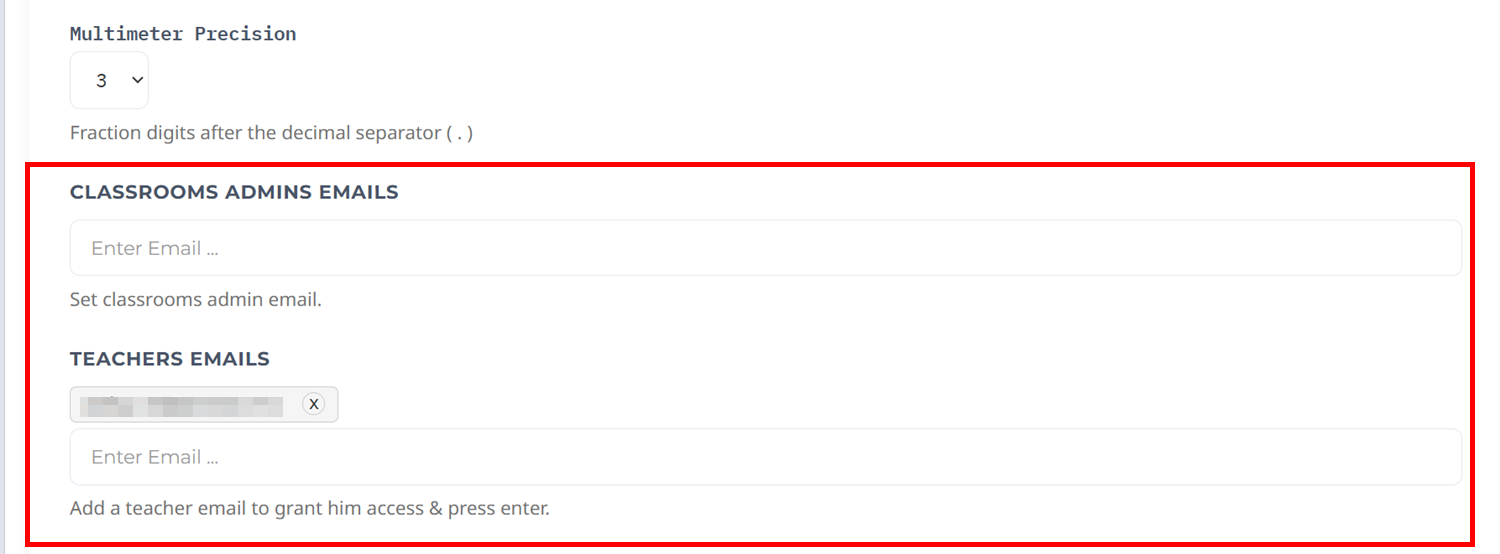
In the following sections, you'll see how to assign and remove roles for users in DCACLab Classrooms.
Assign a Role
Classroom Admin and Teacher roles can only be assigned to users who have a DCACLab account. If the user you want to assign a role to hasn't created an account yet, ask them to sign up first.
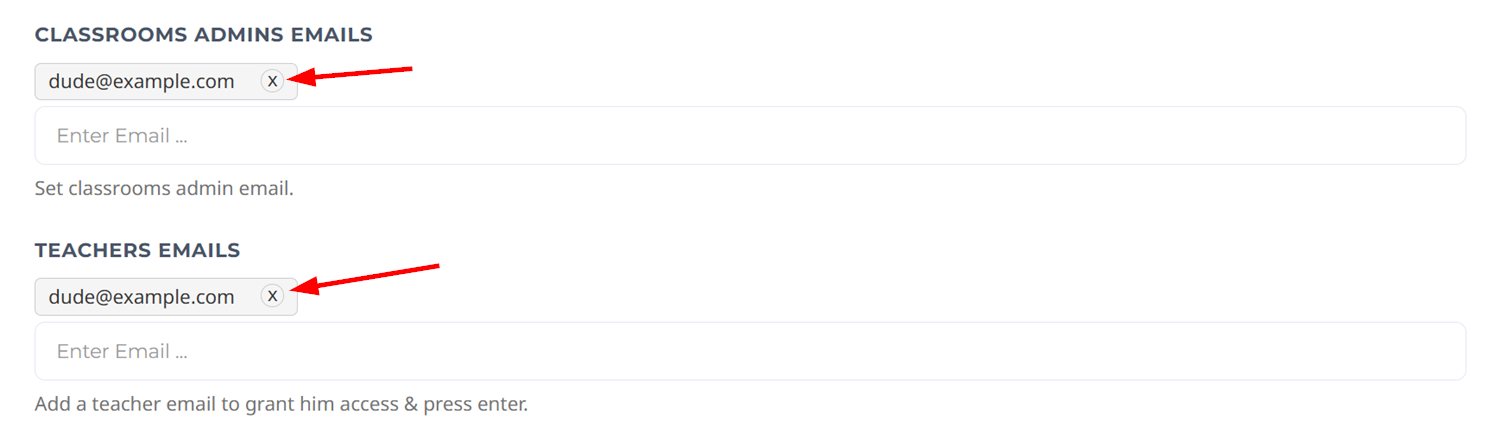
To assign a Classroom Admin or Teacher role to a user, type the email address of the user in the corresponding field and press Enter. The user will be added to the list of users with that role.
Remove a Role
To remove a Classroom Admin or Teacher role from a user, click the X button next to the user's email address in the corresponding field. The user will be removed from the list of users with that role.